Websites / 6 min read
Contact form not working? Trace the missing inquiry.
Find where a website inquiry stops: submission, saved receipt, email notification, inbox or reply. A business-owner checklist with a synthetic test worksheet.
Follow one inquiry through the whole path
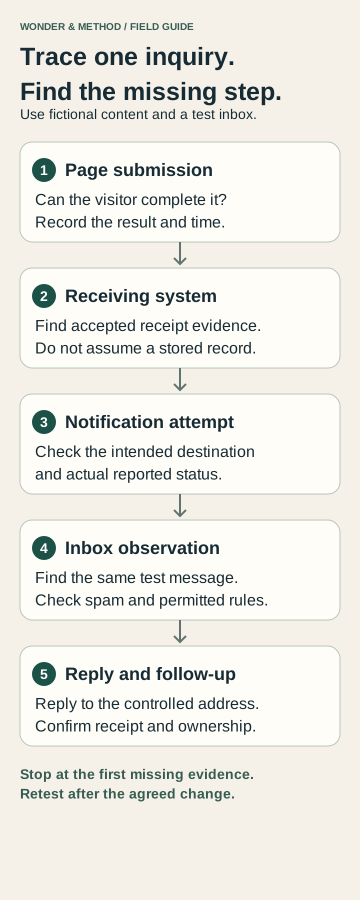
A contact form can look successful while the business never sees the message. The page, the receiving system, the notification email, the inbox and the reply are separate steps. “It submitted” is therefore an incomplete test. The useful question is: where does the evidence stop?
Start with one clearly labelled test that the business owner has authorized. Use fictional message content and a test address you control. Record the page address, device, browser and time with timezone. Tell the person checking the inbox what to look for. Avoid repeated submissions until you understand whether the first one was accepted.
Check what the visitor can do
Open the public page on a phone as well as the device where the problem was reported. Can you reach every field, understand what is required and activate the submit button? Submit a deliberately incomplete test first, then correct it. Validation should explain the missing information without erasing everything already typed.
- Check required fields, email format and the visible error message.
- Record whether a loading state finishes or stays stuck.
- Check whether the confirmation refers to this submission or is just always-visible page text.
- Capture the wording and time of the result without including private customer information.
If the page fails before submission, ask the maintainer to investigate that reproducible step. Changing mailbox settings would not explain a button that never sends a request. Where the problem affects the wider page, use the repair-or-redesign decision guide before assuming a complete rebuild is necessary.
Confirm that the receiving system accepted it
Ask the authorized operator to look for the same test in the system that receives inquiries. Depending on the setup, that evidence might be a stored record, submission identifier or provider receipt. A site may not store a separate inquiry record; document the actual design instead of assuming that every form has a database.
If the browser reports success but the operator cannot establish receipt, capture both observations. Ask the maintainer to check the submission response and the agreed receiving destination. Do not paste passwords, access tokens, full logs or customer records into a public support conversation. Request a redacted finding and a clear next action.
Illustrative example: the test appears in a permitted submission record, but no notification is found. That narrows the investigation to the later delivery stages. It does not prove the form lost the inquiry or that a different website platform is required.
Check the notification attempt
Once receipt is established, find out whether the system attempted to notify the intended business address. Confirm the destination spelling and whether an old employee, former provider or test mailbox still receives the messages. Review the notification status through authorized tools if those tools provide one.
Distinguish a notification being requested from it being accepted by an email service, and distinguish both from arrival in the reader’s inbox. Record the actual status shown, rather than translating an unfamiliar provider label into “delivered.” If the service reports rejection or a delay, give that exact redacted finding to the responsible maintainer.
The next technical check depends on the system in use. Sender configuration, allowed destinations, service limits or an expired connection may warrant investigation, but this checklist cannot identify one of them without evidence. Make one agreed change, keep a recovery route and repeat the same test.
Find the message and test the reply
Search the intended inbox for the test subject and time. Check spam, quarantine and mailbox rules where the account permits it. Confirm that the person responsible can access the destination. A message in an unattended account is an operational gap even if the technical delivery succeeded.
If the message is in spam, preserve enough header or status information for the authorized maintainer to investigate safely. Do not disable filtering or broadly trust unknown senders as a shortcut. If it is missing, compare the inbox observation with the notification evidence before deciding which system to change.
Then reply from the business mailbox to the controlled test address. Does the reply go to the person who submitted the form? Does it arrive? A notification that uses an unsuitable reply address can break the conversation after the initial inquiry has already arrived. Confirm who will follow up and where that responsibility is recorded.
Retest the customer task and keep the record
After the agreed correction, repeat the submission-to-reply test and record the result at each step. Check another relevant device if the original issue involved mobile use. Mark any unresolved access or provider dependency explicitly. Remove test records according to the business’s approved retention practice.
A useful finish is a dated record of the problem, the smallest supported change, the test and the remaining limitation. It is not merely a screenshot of a green success message. The website audit checklist helps connect this check with the wider customer journey.
For ongoing supported checks and supplied updates, compare website care plans. If the site needs diagnosis and contained corrections first, discuss the Audit & Fix Sprint. Fit and the specific acceptance check are agreed before work; neither option means unlimited repairs or support for every platform.
Match the symptom to a concrete check
| Symptom | Check | Next action |
|---|---|---|
| Submit does nothing | Check visible field errors and whether the CAPTCHA loads. Try a fresh session on the actual public domain. | Record browser, URL and time. Ask the maintainer to inspect script/network errors and the configured challenge hostname. |
| Challenge keeps failing | Record the displayed error code; a changed hostname or expired challenge can require different action. | Use the provider’s error guidance. Do not disable spam protection to make a test pass. |
| Success appears, but no inquiry is found | Check the form provider’s submission record and the server response, using authorized access. | Confirm whether it was stored before investigating email. A success message can be misleading if the application handles errors incorrectly. |
| Record saved, email missing | Check the current destination, notification log, sender settings, quotas and any expired email connection. | Correct the evidenced failure and repeat the same synthetic test. On WordPress, identify the configured mail path before adding an SMTP plugin. |
| Email goes to spam or bounces | Inspect the redacted rejection reason and sender authentication result. | Ask the authorized mail administrator to verify SPF/DKIM and applicable DMARC alignment for the actual sending service. |
| Reply goes to the wrong address | Inspect the controlled test message’s Reply-To value. | Use the verified business sender for From and the validated customer address for Reply-To where supported; retest the reply. |
For Turnstile, Cloudflare’s error-code reference distinguishes invalid configuration, unauthorized hostnames and expired challenges. Google’s email sender guidelines explain authentication requirements for mail sent to Gmail. An authentication pass can help delivery, but does not prove inbox arrival.
Give support the URL, time, test reference, failed stage and redacted error. Keep passwords, tokens and customer records out of the report.